
On this page
Quick answer
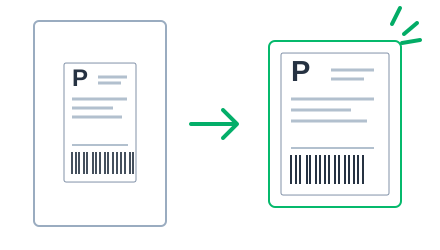
Upload the original PDF or image to the Reseller Cash Shipping Label Cropper. It detects the printable region, removes extra margins, and creates a clean 4 × 6 PDF ready for a thermal label printer. Review the blue crop frame before downloading.
The tool runs entirely in your browser. You don’t need to install anything or create an account, and your file stays on your device.
How to convert a Vinted label to 4 × 6
Vinted labels may arrive on a full Letter (8.5 × 11 in) or A4 (210 × 297 mm) page, depending on the carrier and region. These steps crop the label for thermal printing.
- Download the shipping label from the Vinted order.
- Save the PDF or image without taking a screenshot when possible.
- Upload it to the cropper and check the blue frame includes the complete label and barcode.
- Download the 4 × 6 PDF and print at Actual size or 100%.
How to convert an Amazon return label to 4 × 6
Amazon return labels may include instructions, extra details, or multiple blocks on one page, such as a return label plus a packing slip. After uploading, confirm that the blue frame contains the correct carrier barcode. Move or zoom the crop if needed, then download the 4 × 6 PDF and print at 100%.
Printer settings that prevent small barcodes
Use the right print settings to keep the barcode readable and scannable:
- Set Paper size to 4 × 6 in (or 100 × 150 mm).
- Choose Actual size or 100%, not Fit to page.
- Use Portrait orientation for a vertical label.
Troubleshooting
The crop includes instructions or misses part of the label
Drag the blue frame and use zoom until the address and all barcode edges are inside it. For a PDF with several pages, choose the correct page first.
The barcode is too small
Make sure the download is the generated 4 × 6 PDF, your printer is set to 4 × 6 paper, and scaling is Actual size or 100%.
Frequently asked questions
Are my shipping labels uploaded?
No. The file is opened and converted locally in your browser; the cropper does not upload it to Reseller Cash.
Can I use a photo?
Yes. JPG and PNG are supported, though the original PDF usually gives a sharper barcode.
Does it work with labels from other marketplaces?
Yes. The cropper accepts any supported PDF or image with a printable shipping label.